
Joblogic Reporting: What It Covers and How to Get More From Your Data
By David Laws, founder of Responsive Analytix. Last updated: October 2026.
In short: Joblogic’s built-in reporting covers jobs, engineers, SLAs, invoicing and job costing well. When you need more, there are three ways to get the data out: a scheduled custom report, the Joblogic API, or the Reporting Database. Which one you need depends on the question you’re answering, not on how technical the option sounds.
People looking into Joblogic reporting usually want to know one of three things. Will the built-in reports do? How do I get the data into Power BI or Excel? Why don’t the numbers match what I know happened?
I’ve worked on Joblogic data for an engineering maintenance business with more than 200 staff and a commercial plumbing firm of around 40. This article answers those three questions from that work.
What reporting does Joblogic include?
The main reporting dashboard shows outstanding, completed and invoiced jobs across different timeframes. The report builder has templates and custom reports, filtered by status, date, site and customer. You can run a report on screen, filter it, and export it to CSV for Excel.
Operationally, it covers first-time fix rates, response times against SLA, time on jobs and engineer productivity. Financially, it covers invoicing, job costing, quotes and purchase orders, with links to the main accounting packages.
That covers most day-to-day operational questions. Before building anything, it’s worth checking what the existing reports already answer. Most businesses I speak to use a fraction of what they’re paying for.
Joblogic integrations for reporting: three ways to get your data out
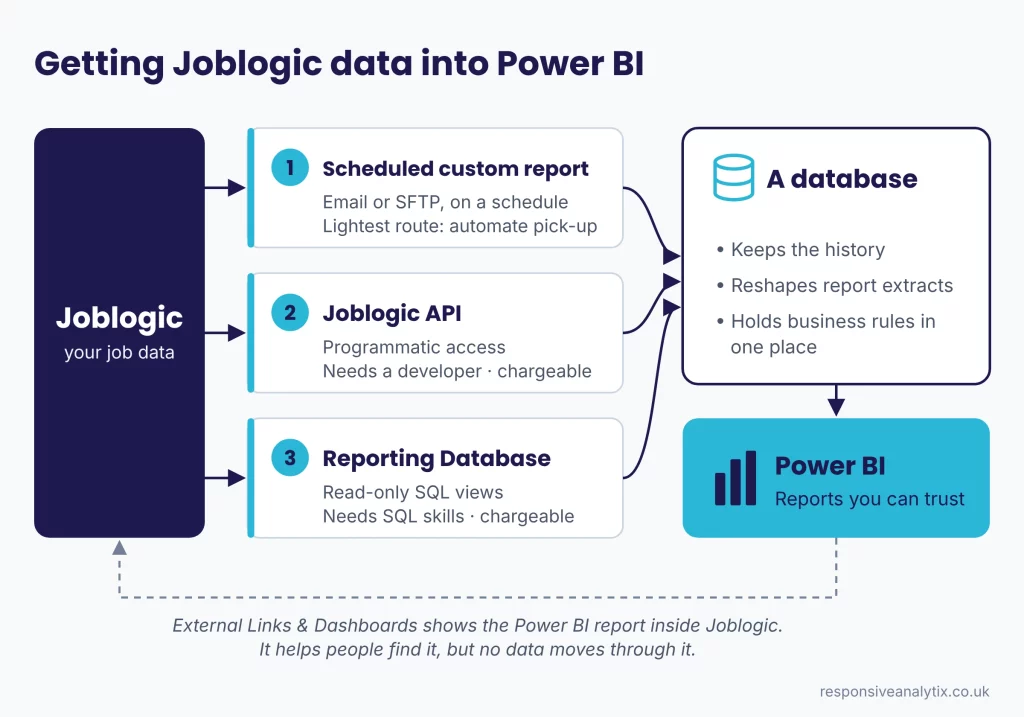
When the built-in reports aren’t enough, the data has to leave Joblogic. There are three realistic routes.
| Route | What you get | What it needs | Best for |
|---|---|---|---|
| Scheduled custom report | A set report delivered automatically, by email or to SFTP | Little technical effort in Joblogic. The work is in picking the file up automatically | Well-defined, recurring reporting such as a payroll run |
| Joblogic API | Programmatic access to your data | A developer, and a chargeable add-on | Automated loads into another system |
| Reporting Database | An Azure SQL database with read-only access to views of your Joblogic data, with a data dictionary and relationship mapping | A SQL tool such as SSMS, an IP address allow-listed by Joblogic support, SQL skills, and a chargeable add-on | Ad hoc analysis and joining many tables |
Both the API and the Reporting Database are chargeable, so it’s worth confirming the cost with Joblogic before assuming either is the answer. The Reporting Database also only covers the data Joblogic makes available through it, so check that the field you need is in the data dictionary before you plan around it.
Where Joblogic’s own reports already match what you need, they’re a good starting point. The difficulty is rarely the report itself. It’s collecting it automatically, month after month, without someone having to remember.
Can Joblogic connect to Power BI?
Two different things get called connecting, and it’s worth separating them.
Showing Power BI inside Joblogic. External Links & Dashboards lets you add links to reports and dashboards from outside Joblogic, including browsing your own Power BI account and picking reports to add. They then open within Joblogic. This helps adoption, because people see the reporting where they already work, but no Joblogic data moves through it.
Getting Joblogic data into Power BI. That needs one of the three routes above. The common pattern is a scheduled report landing somewhere automatically with a tool such as Power Automate picking it up from an email, or delivery to SFTP and on into cloud storage. At Flow-Right the route was a scheduled report to SFTP, then into cloud storage and on into a data warehouse.
The step people underestimate is what happens after the file lands. Report extracts are built to be read, not modelled, and reworking one by hand every month is slow and easy to get wrong. Each new extract also has to sit alongside the last one rather than replace it. That is what a database gives you: somewhere to hold the history, reshape the data, and keep business rules such as contract terms or on-call arrangements in one place instead of spread across Power BI files. I explain why that matters in the field service reporting guide.
Why don’t my Joblogic reports match what’s happening on the ground?
Joblogic reports accurately on what’s in Joblogic. The mismatch almost always comes from what gets recorded. Three checks are worth running before you trust a report. Not everything they find is a fault; some of it is how the business genuinely works, and needs a decision rather than a fix.
- Jobs still open long after the last visit. The engineer has left site but nobody closed the job, so time and status keep counting.
- Overlapping time entries for the same engineer. These aren’t always errors. An engineer might log an eight-hour maintenance visit and then record further detail against part of that same period. The recording is right; the double count is the problem. Joblogic can be set to prevent overlaps, but that often removes detail the business genuinely wants. The better question is how to keep the detail without it reaching payroll twice.
- Unusually long continuous sessions. On one engagement, a tablet had been left logged in for three days, and every hour of it sat in the data as work.
When a check turns something up, decide how it should be handled and apply that where the data is stored. Correcting it by hand in a spreadsheet means doing it again next month. A new dashboard on top of the same data just shows the same wrong numbers more convincingly.
What can’t Joblogic reporting answer?
Anything that needs data from another system. Payroll, HR, non Joblogic vehicle tracking and finance all sit outside Joblogic, so questions like these can’t be answered inside it:
- What is the true cost to serve a site once vehicle and staff costs are included?
- Where do timesheet hours and vehicle tracking disagree?
- How does absence affect SLA performance by region?
Each needs Joblogic data joined to at least one other source. The field service reporting guide covers how that is usually built. If you run a field service or engineering maintenance business, you can also see how I help field service businesses.
Where to start
- Use the built-in reports properly. Check what the dashboard and report builder already answer.
- Sort out the data behind them. Run the three checks above and decide how each case should be handled.
- Choose the lightest route out. A scheduled report first; the API or Reporting Database only when you need live, ad hoc or multi-system access.
The second step is the one most often skipped, and it decides whether anything built afterwards can be trusted.
What this looks like in practice
Flow-Right Commercial Plumbing & Drainage, with almost 40 staff on Joblogic, was copying each engineer’s time out of Joblogic into a spreadsheet every pay period. It didn’t need the API or the Reporting Database. A scheduled custom report, delivered automatically, removed the copy-and-paste step and took hours out of each payroll run.
“I knew there had to be a better way and David was exactly the right person to help us find it.”
Chris Eland, CEO, Flow-Right Commercial Plumbing & Drainage
Read the Flow-Right case study
At Linaker, an engineering maintenance business, the work digitised part of the timesheet process and added management reports used at board level every month. Linaker credits it with freeing up two full-time positions in its accounts team, and with giving the board information for strategic decisions it couldn’t make before. Read the Linaker case study
FAQs
Does Joblogic have built-in reporting?
Yes. The main dashboard shows outstanding, completed and invoiced jobs, and the report builder offers templates and custom reports filtered by status, date, site and customer. For day-to-day operational questions, it’s usually enough.
Can I export Joblogic reports to Excel?
Yes. Reports can be exported to CSV and opened in Excel. If the same export is being reworked by hand every month, automating the collection of it is usually the better long-term route.
Can Joblogic connect to Power BI?
In two senses. Joblogic’s External Links & Dashboards feature can display a Power BI report inside Joblogic, which helps people find it. Getting Joblogic data into Power BI is separate, and goes through a scheduled report, the API or the Reporting Database.
What is the Joblogic Reporting Database?
A chargeable add-on giving read-only access to an Azure SQL database of views over your Joblogic data, with a data dictionary and relationship mapping. You need a SQL tool, an IP address allow-listed by Joblogic support, and someone comfortable writing SQL.
What’s the best way to extract data from Joblogic for reporting?
Start with the simplest route that meets the need. A scheduled custom report is often enough for defined, recurring reporting, as long as collecting it is automated. The API or Reporting Database make sense for live or ad hoc access, or when Joblogic is joined to several other systems.
Why don’t my Joblogic reports match what’s actually happening?
Usually because of the data behind the report: jobs never closed, overlapping time entries, or devices left logged in. A report built on that data looks precise and is still wrong. Sort out the data first.
If your Joblogic numbers still don’t add up
If you’re not sure where the problem sits, the Data Strategy Roadmap shows what’s holding your reporting back and what to fix first. If you already know, book a free call with David.
Written by David Laws, founder of Responsive Analytix. About David. Last updated: October 2026.